Static Site Export
The Static Site Export plugin allows you to export a flattened copy of your Omeka Classic public site. Using Hugo, you can rebuild a simplified version of your site that will maintain most of your page elements and all of your resources.
Static sites can be useful as a backup and record of your site's content, and for reducing server load for legacy web projects.
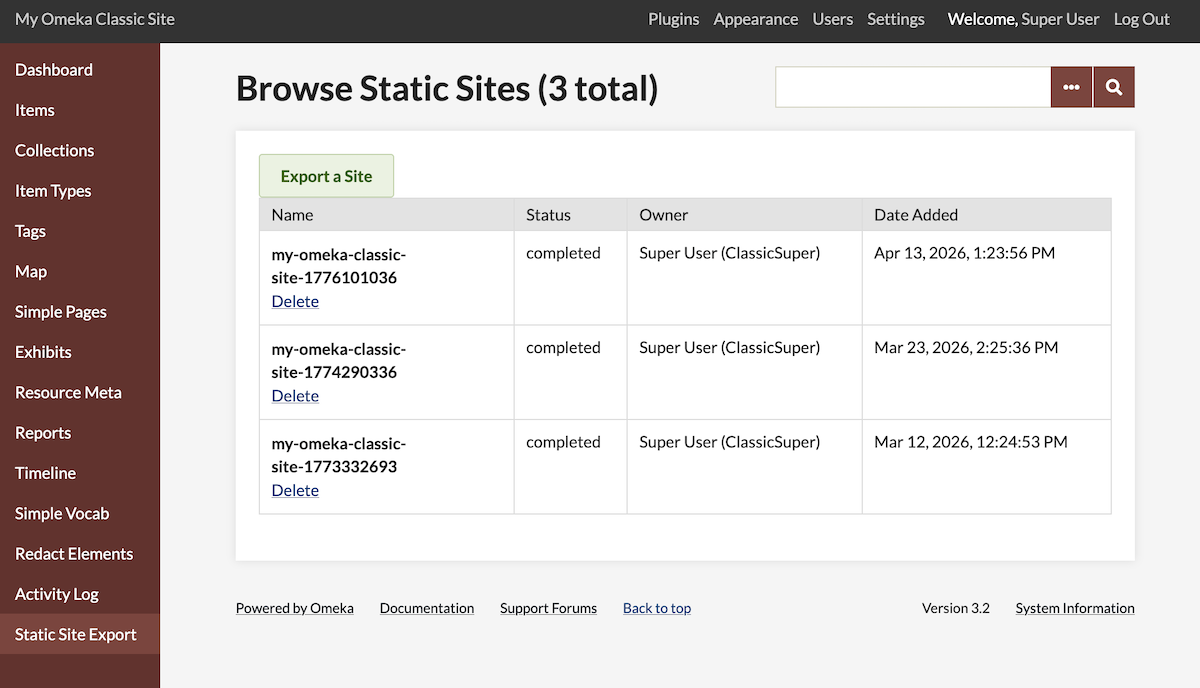
Static sites do not contain the usual dynamic website elements, such as searching and indexing content. Some of your website elements will not be rendered in the export. Currently the Static Site Export plugin only supports content from Exhibit Builder, Simple Pages, and Geolocation - not other plugin-based data. Static sites will be produced with a version of the "default" theme for Classic.
Once an export has been produced, you can edit its CSS or other code to customize it to more closely match your original site. For this and other advanced uses of the exports, see the developer documentation included in the Readme on the plugin package.
Requirements and permissions
Exports can be created and managed by Super Users only.
This plugin will only work with updated versions of Exhibit Builder, Simple Pages, and Geolocation. Be sure to update those plugins when the Plugins page suggests you do so.
Configuration
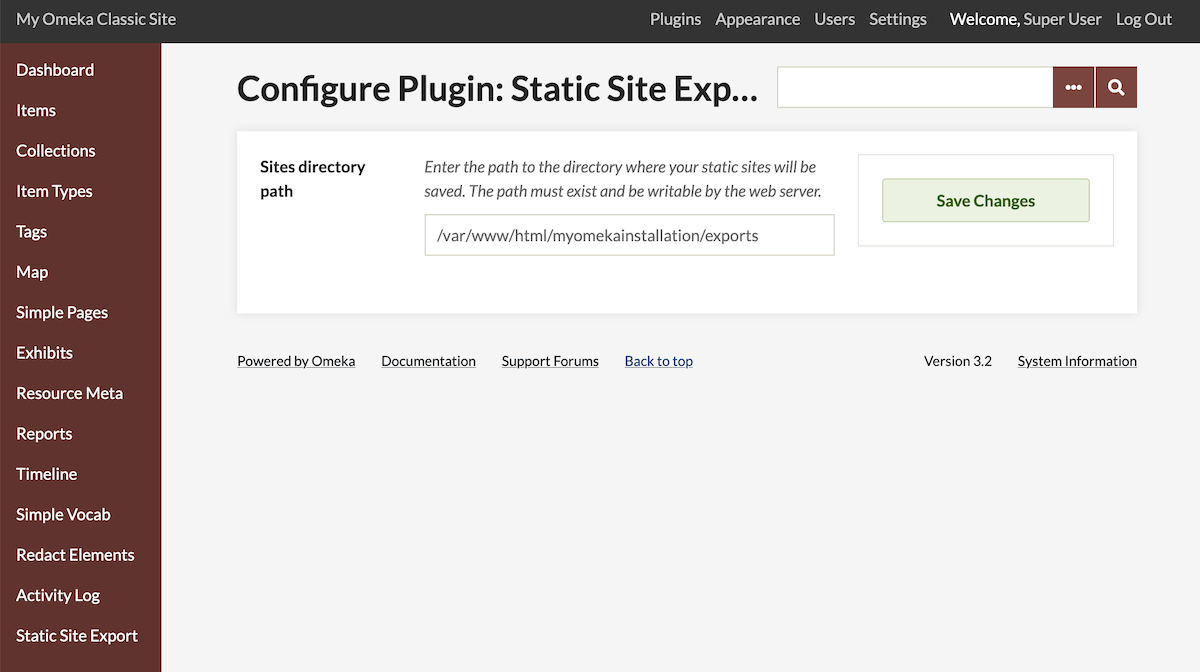
After installing this plugin, you will need to add a "Sites directory path" in the plugin configuration page. This is the path to the directory where your static sites will be saved on your server. The path must exist and be writable by the web server. This is an absolute server path, which may look something like /var/www/html/youromekainstallation/exports.
Export your site
After installing and configuring this plugin, click on "Static Site Export" in the left-hand navigation, and click the "Export a site" button.
On this page you will configure the export by:
- entering a "Base URL": If you plan to deploy the flattened site online, enter in the URL here so that the site's links can be configured correctly.
- selecting a "Theme": At this time, Omeka S only offers a flat theme that resembles our "Default" theme.
- declaring whether to "Include private resources": If this is left unchecked, your site will include only resources that are available to logged-out site viewers. If checked, resources only visible to logged-in users will also be made available in the export (as though they were public).
This plugin will export your entire public site, including all exhibits. Note the difference between this and the equivalent S module, which exports individual "sites" (in S, each site can be an exhibit as well as provide browsing and searching to a selected set of resources).
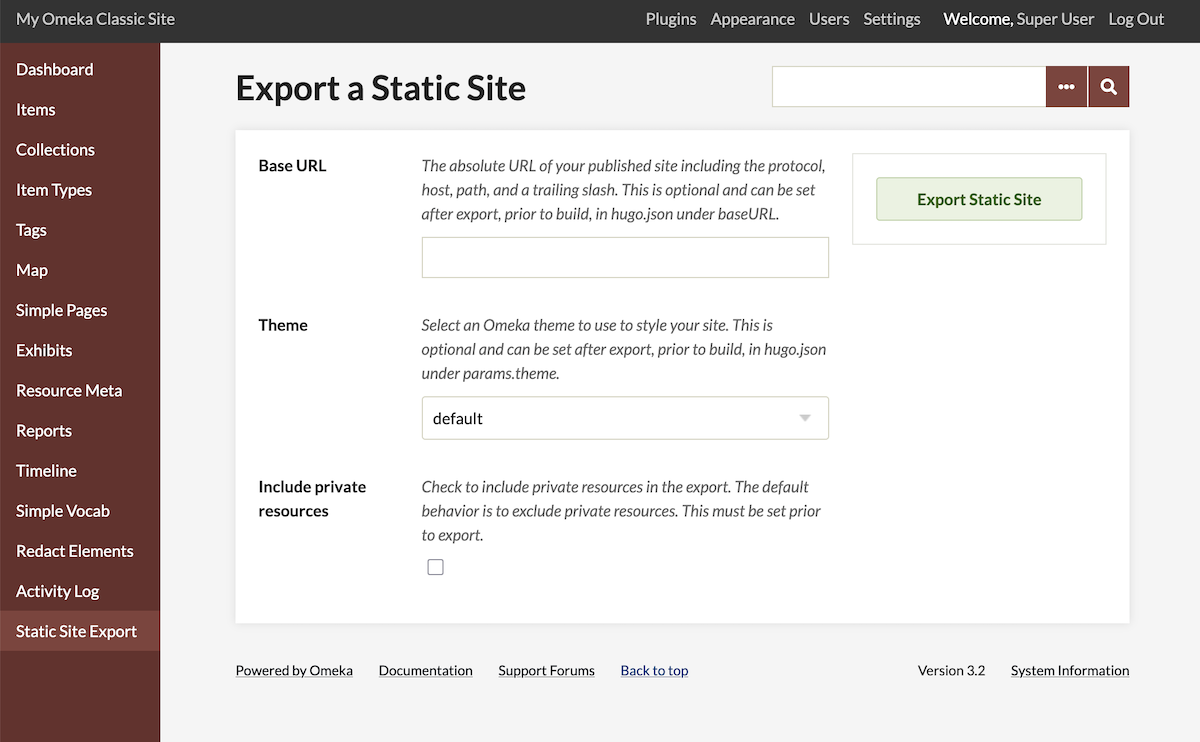
After configuring the export, click the "Begin export" button. The new export will be the first in the table on the base plugin page. The export is finished once the status is marked as "completed".
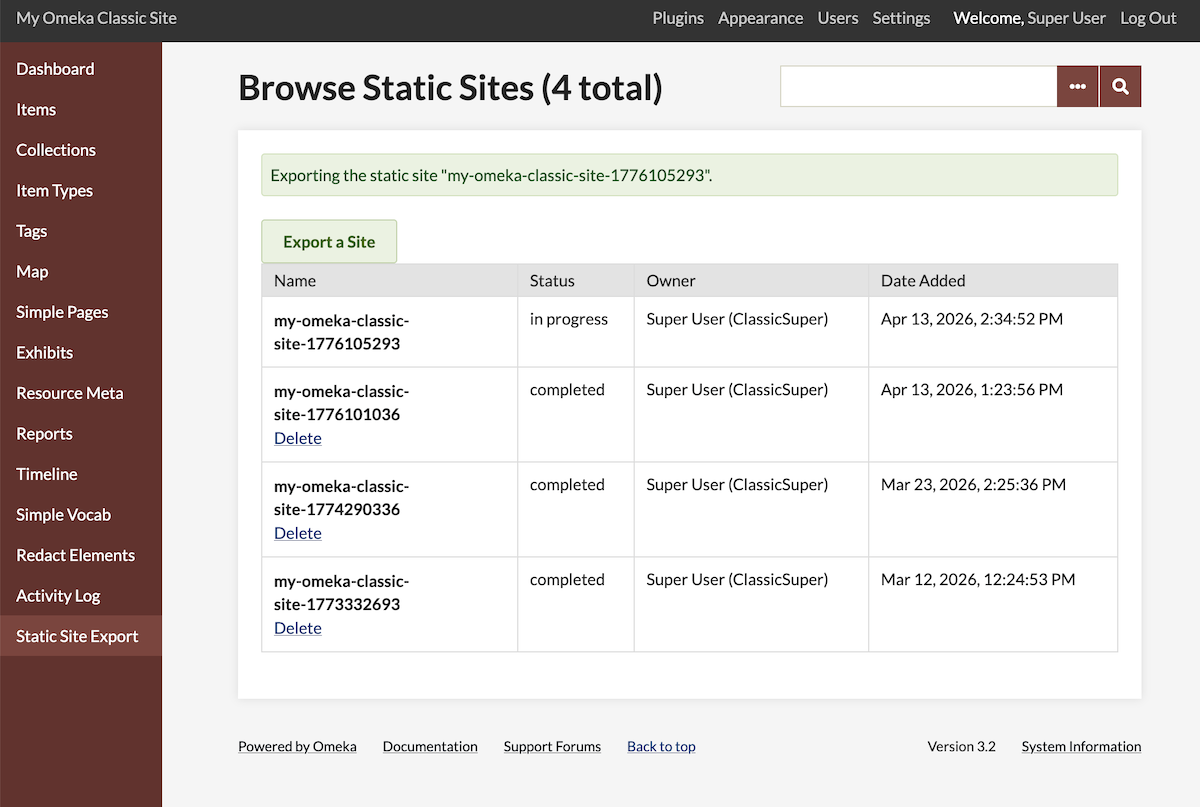
An export may take a long time, depending on the size of the site. The export will contain all file derivatives (including original uploads) for all items.
Note that the export runs several widely used commands on your server: cd, cp, rm, unzip, and zip. They are likely already installed on your server, so there's nothing you need to do.
The export will be a ZIP file that appears in the folder you set in the plugin configuration. You can navigate to and download your export ZIP using your browser or with the command line.
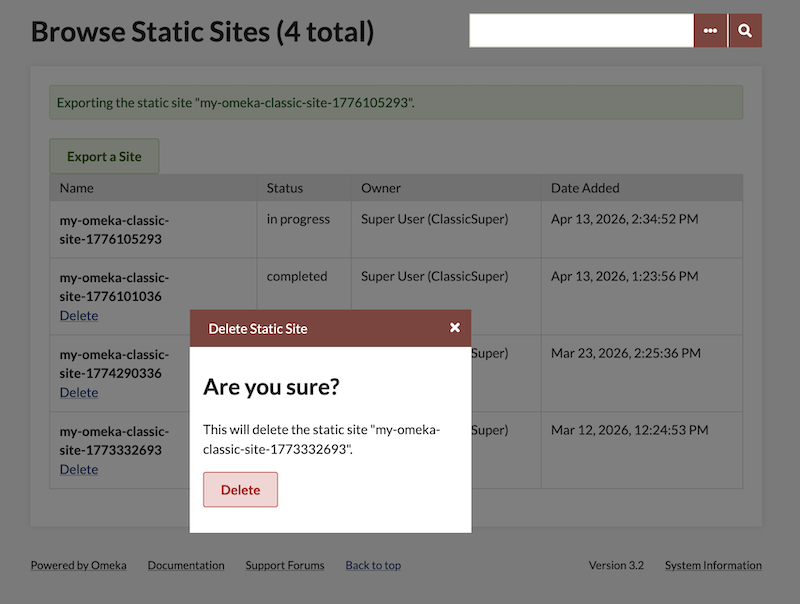
You can delete exports from the table with the "Delete" link in each row. This will delete the export file as well as the database record.
Deploy your site with Hugo
You can extract the export and build your site using Hugo either locally or online.
After exporting a static site, you can unzip the resulting ZIP file and immediately use Hugo to build the site, run a local testing server, and view the site:
cd /path/to/static-sites/
unzip <export-name>.zip
cd <export-name>/
hugo server
After the build is complete, follow the instructions in your terminal and go to the specified web server in your browser. If your site is very large, you may need to disable the default "watch for changes and recreate" behavior by running hugo server --watch=false.
When you are ready to deploy your site, run hugo in your project directory. See Hugo's documentation to learn more about how to use the command line interface (CLI) to manage your site, and how to host and deploy your site.