Collections
Collections are groups of Omeka items. Collections are a flexible means of organizing and presenting Omeka items, and can be used in the ways that make the most sense for your objects.
In Omeka Classic, an item can only belong to one collection. Collections can, of course, have multiple items. The concept of Omeka collections originates from museum and archives collections; one cannot put a document into more than one box.
Collections have no hierarchy, unless you install the Collection Tree plugin in order to have a nested collections. Items in collections have no set order, unless you install the Item Order plugin in order to rearrange your items.
The following screencast covers creating collections and adding items to those collections, as well as how to use the Collection Tree and Item Order plugins:
Managing Collections in Omeka Classic from Omeka on Vimeo.
You can use tags to organize similar items into browseable categories. Tags can provide the multi-category flexibility that collections don't offer.
The following screencast can help you determine when you would like to use collections or tags:
Omeka Classic: Managing Collections and Tags from Omeka on Vimeo.
Create a collection
- Click on the "Collections" tab in the left navigation bar from the Dashboard. Any collections you have created will be listed on the
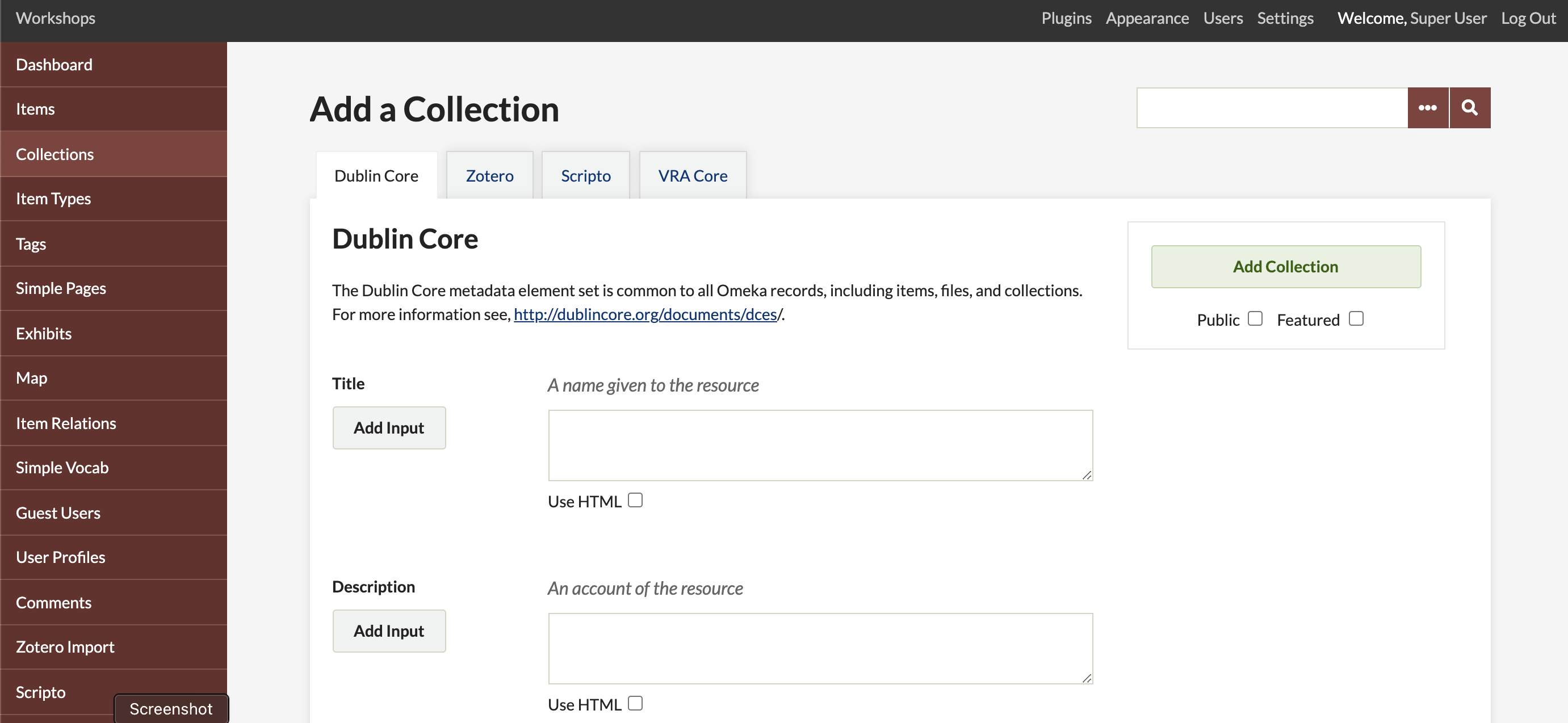
admin/collectionspage. - To create a new collection, click, "Add a Collection".
- You may assign a full complement of Dublin Core metadata to any collection, or simply create a title and description.
- The Dublin Core Extended plugin and the VRA Core plugin will also offer more fields to describe collections.
- To make your collection public, check the "Public" box under the "Add Collection" button.
- Likewise, to feature your collection, check "Feature".
- When you are finished adding metadata, click the "Add Collection" button to save it.
Now that you have created a collection, you may associate an item with this collection, from the items/add or items/edit pages. Read more below.
Add items to collections
To add items to a collection, you must first create the collection. See the Items documentation to read more about associating an item with a collection. An item may only belong to one collection at a time. You may switch an item from one collection to another at any time.
Items can only be added to a collection from the "Browse Items" page, at /admin/items, or from an individual item's editing interface.
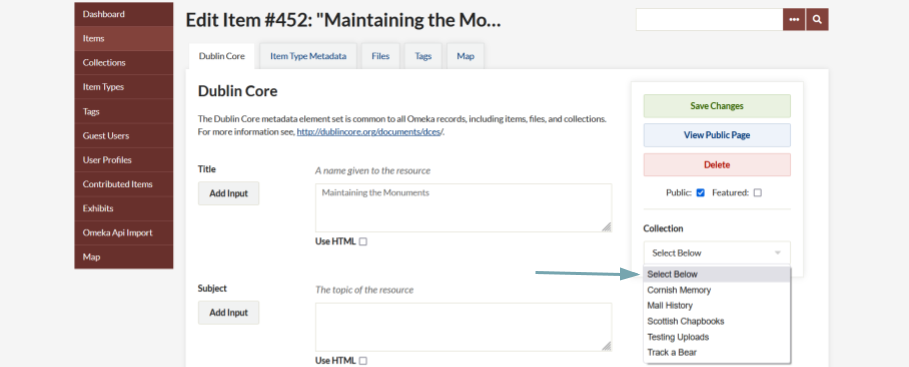
From the item edit page, use the dropdown menu on the right hand side, under the "Save Changes" button, to select a collection.
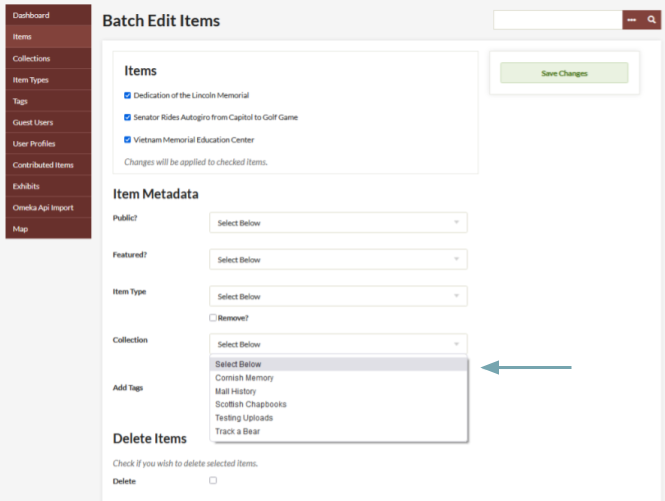
From the "Browse Items" page, you can use the batch-edit option to add multiple items to a collection, again using a dropdown menu to select the existing collection.
The thumbnail image for a collection is automatically derived from the primary file of the most recently created item in the collection, or, if you have an item checked as "featured," the most recently-created featured item in the collection. Collection thumbnails cannot be edited manually.
Edit a collection
To edit a collection, click the "Edit" link underneath the title from the Collections page, at /admin/collection. Edit in any fields you wish, and click the "Save Changes" button to the right of the screen.
Browse collections
By clicking the "Collections" tab, you may browse through the collections in your installation. They are listed with very basic metadata: "Title", "Contributors", "Date Added", and "Total Number of Items". You may sort collections by clicking "Title" or "Date Added". Like items, they will show a green "Featured" indicator or a blue "Private" indicator below the collection title, where applicable.
On the public interface, you can find the "Browse Collections" page at yoursite/collections/browse. A link is automatically added to the site navigation pointing to yoursite/collections/browse, and can be rearranged, removed, or retitled in the Navigation settings.