Users
An Omeka site can have one or many registered users. This can represent staff of your organization, with various responsibilities for your site and collections, or members of your community who are contributing knowledge and materials. Omeka Classic offers four user roles with different access and powers on the site - you can assign people to any of these levels, depending on your needs.
Plugins can add more roles, as well as more permissions to each role. For example, if you want to encourage comments on your items, you can add the Commenting plugin (which requires the Guest User plugin), which enables the collection form for users to submit their thoughts, and then assign members of your team, based on their user levels, to moderate whatever comments are submitted.
Logged-out users will not see a public login page anywhere on your public Omeka site; this page is accessed by going to yourinstallation/admin in a browser (it automatically resolves to /admin/user/login). You can install the Guest User plugint to add a "Login" and "Register" bar to the top of every screen. You can also manually add a login page, or a link to the administrative interface, to your public site if desired.
Manage users
The "Users" section is a link at the top of the page, visible to Super users. This page allows site administrators to control who may access the administrative section of the site and what they can do. You may add, delete, and assign categories to your users.

Manage users by clicking on the Users tab in the top navigation of your admin dashboard.
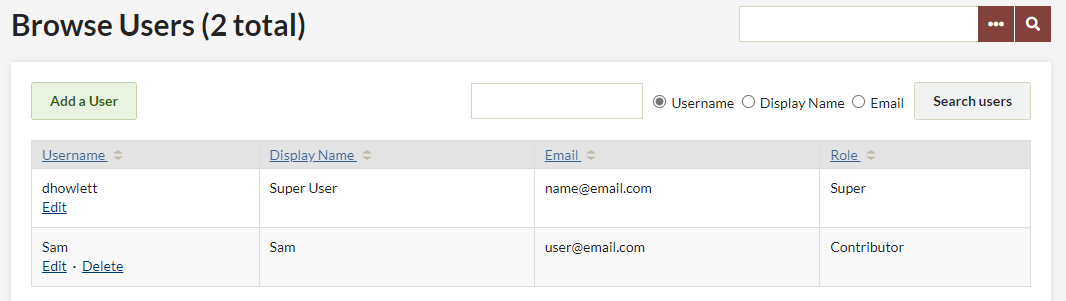
The Browse Users screen shows the number of users, as well as the username, display name, email, and role for each user. The table displaying users can be sorted by any of those values. From this page, you may edit user information, delete users, or search existing users.
To sort users, simply click on the column heading by which you would like to sort. If you want to sort descending rather than ascending, click twice on the heading. The small paired arrows beside the column heading indicate whether the sort is ascending (top arrow darker) or descending (bottom arrow darker).
You can search users by username, display name, or email address. Username and display name searches can include complete words or partial strings. Email searches only function with a complete email address.
A user who attempts to login using their screen name can reset their password from the login page. The reset link is sent to the email address associated with the username. The link expires after 24 hours. No administrative intervention is required for a user to reset their password.
User levels and access
Omeka Classic allows you to give different backend users different levels of access to your administrative interface. Read through the following list of actions available to users to determine what works best for your project team members.
All logged-in Super, Admin, Contributor, and Researcher users on each site can view non-public content (items, collections, Simple Pages, Exhibits, etc.) on the site.
Super
- Can do anything and everything in Omeka.
- Super Users are the only accounts with access to the top navigation tabs for Plugins, Appearance, Users, and Settings.
Admin
Admin users do not have access to the tabs for managing plugins, appearance, users, or site settings.
Admin users can:
- Add, edit, tag, and delete items, both their own and created by other users.
- Make items, collections, exhibits, and other content public or not public.
- Make items, collections, exhibits, and other content features or not featured.
- Add, edit, and delete Item Types.
- Add, edit, and delete files.
- Interact with plugins installed and activated by a SuperUser.
- Add, edit, and delete tags.
Contributor
Contributors have control over their own content but can only view content created by others. They cannot make their own content public.
Contributor users can:
- Add, edit, tag, and delete items which they created. They cannot make their own items public - someone else must approve them.
- Create their own exhibits, from items that are public.
Researcher
Researchers can log in to the admin side of an Omeka site and see the content, but cannot interact with it in any way. They cannot add, edit, delete, or tag any items.
Guest users
An additional user role, Guest User, can be added using the Guest User plugin. This role cannot access the administrative interface of your Omeka site at all, but can contribute content on the public site. This plugin is required for Commenting, Contribution, and other front-end interaction plugins.
The Guest User plugin adds the functionality of allowing anonymous submissions. Site visitors must still make an account to submit content, but their username or other identifying information will not be attached to their submissions.
Add users
To add a user, select the green "Add a User" button in the upper left hand corner.
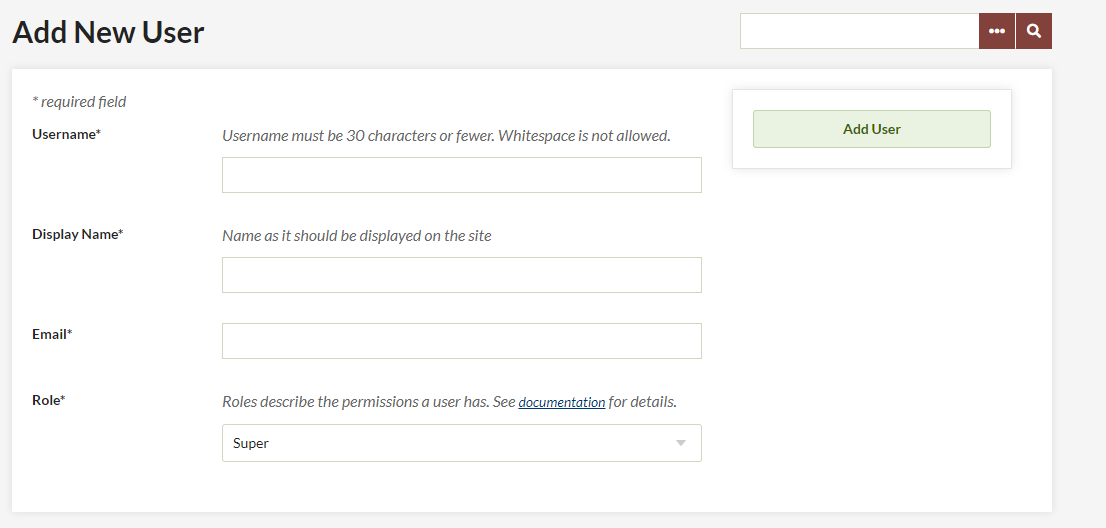
- Fill in the fields for the new user. Assign a role to the user, and click the green "Add User" button to save the page.
- The new user will receive an email at the address you provide with their username and a link that takes them to a form to create a password. Until the new user activates his/her account, an "Inactive" status appears after the username in the main Users list. Email links expire after 24 hours.
- To edit user information, including changing passwords, Super and Admin users may click on the "Edit" button below the username.
Edit users
To edit a user, click on the word "Edit" beneath the username in the Browse Users page. This will direct you to a new page with tab options labelled "General", "Change Password", and "API Keys".
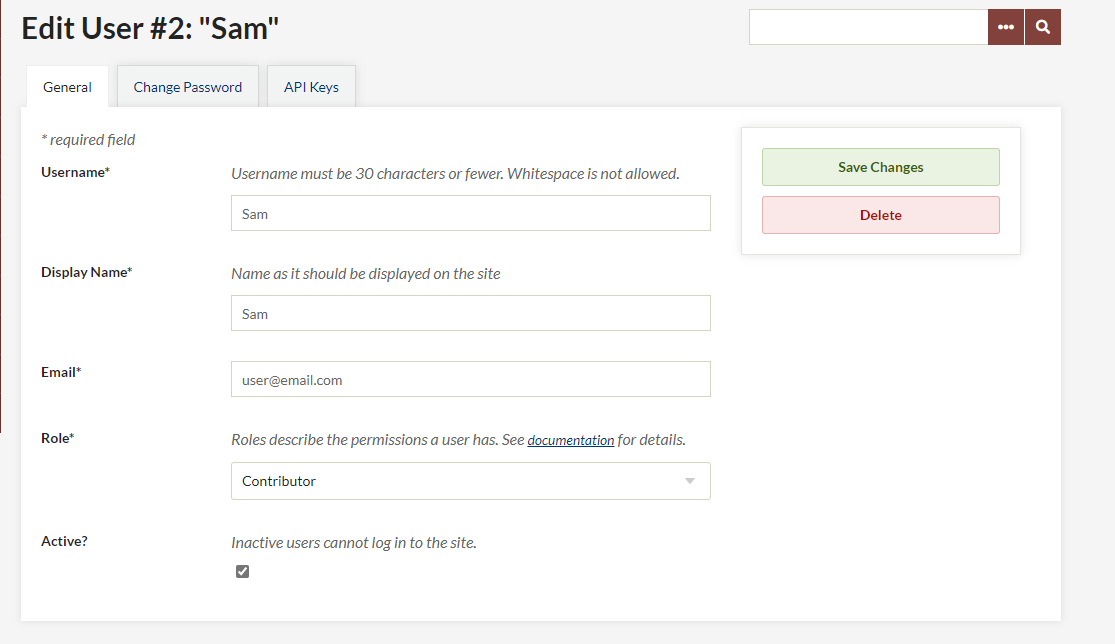
On the "General" tab you can edit the username, display name, email, and role of the user. You can also toggle whether a user is active or inactive.
Inactive users are not deleted, so the items, collections, and tags created by that user remain associated with their account, but the individual can no longer log into the site to make changes or create new data.
The "Change Password" tab requires you to enter a new password twice, but does not require the user’s original password.
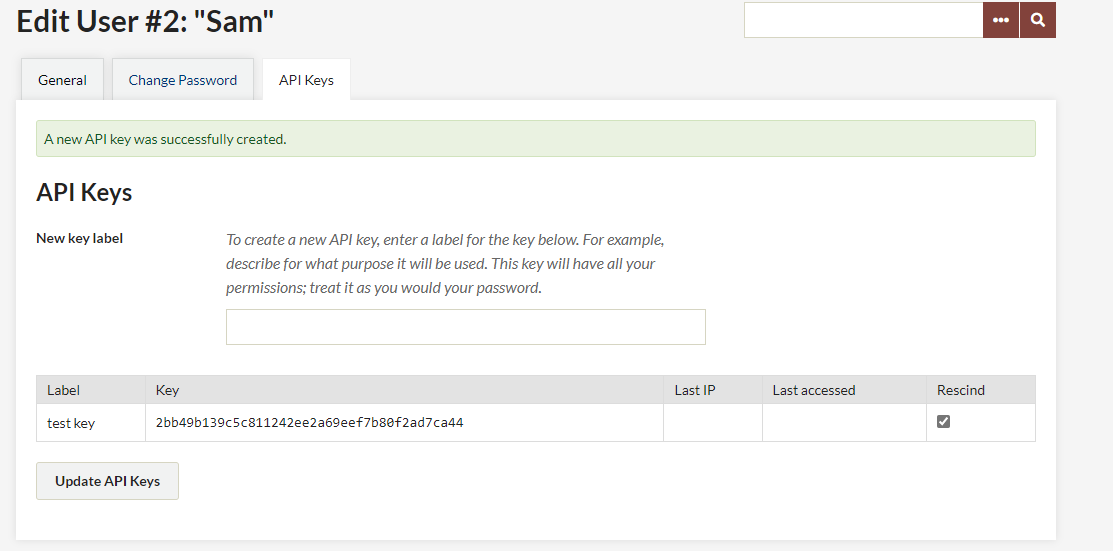
To add an API key for a user, enter text for a label for the key in the field provided and then click “Update API Keys”. An API key will be generated and added to the page. To remove a key, click the checkbox in the "Rescind" column of keys.
Note: You must save your changes before switching tabs.
Delete users
Find the user you wish to delete from /admin/users/browse, and click the "Delete" button found beneath the username. You will be asked to confirm the action before you permanently delete the user. Items, collections, and tags created by this user will remain in the system, but will no longer be associated with this user.