Library of Congress Suggest
The LC Suggest plugin adds an auto-complete feature to almost any metadata field in your Omeka Classic site by pulling results from the Library of Congress's list of authorities and controlled vocabularies. This functionality helps those building an Omeka site to enforce consistent metadata input and data compatibility with other databases of records.
The plugin does not require configuration. After installing the plugin, there should be a LC Suggest tab on the left-hand navigation of your admin dashboard.
Create associations
The Library of Congress maintains an Authorities and Vocabularies service that controls metadata terms used in creating and maintaining records of their holdings. Choices include LC Subject Headings, MARC Geographic Areas, and Thesaurus of Graphic Materials. See the full list of standardized vocabularies and authorities here.
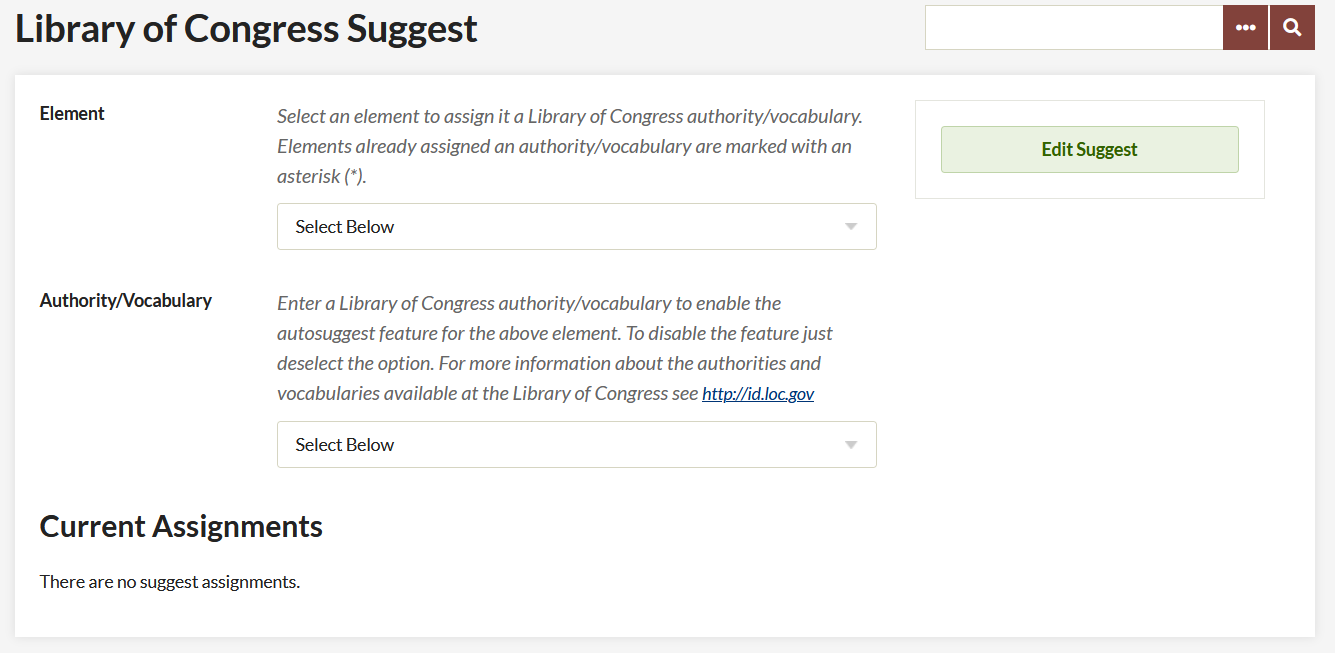
In the LC Suggestion admin page, set up your controlled metadata as follows:
- First choose a metadata field that you wish to contain a controlled vocabulary (any of the core or item type fields) from the dropdown menu. For example, choose "Subjects" from the Dublin Core section. (Elements already assigned an authority/vocabulary are marked with an asterisk (
*) in the dropdown list.) - Assign that field a Library of Congress authority/vocabulary. For example, choose "Library of Congress Subject Headings" from the "Authorities" section.
- Enter as many as you want, then save the page.
Note that you can choose only one vocabulary per metadata field, with the option to add "All authorities", "All vocabularies", or "All authorities and vocabularies" if you need to apply more than one to a single field.
Edit associations
If you remove an authority/vocabulary, no metadata will be deleted or changed in the items.
To change or remove a vocabulary/authority associated with a field go back to the LC Suggest tab.
- Select the metadata element you wish to edit, and choose a new Authority/Vocabulary from that menu, or, to remove a controlled set completely, choose "Select Below".
- Click "Save Changes".
Edit metadata using LC Suggest
When adding items or editing item metadata, users must start typing in the open text box of that specific field, adding the first few letters of a desired word, to prompt the auto-suggest feature. There might be a short delay, but a short menu will appear with choices drawn directly from the authority or vocab list(s) you have associated with that field. For example, if "MARC List for Geographic Areas" was assigned to the "Spatial coverage" field, you could type "gre" and see options including Greece, Grenada, Greenland, and Great Britain.