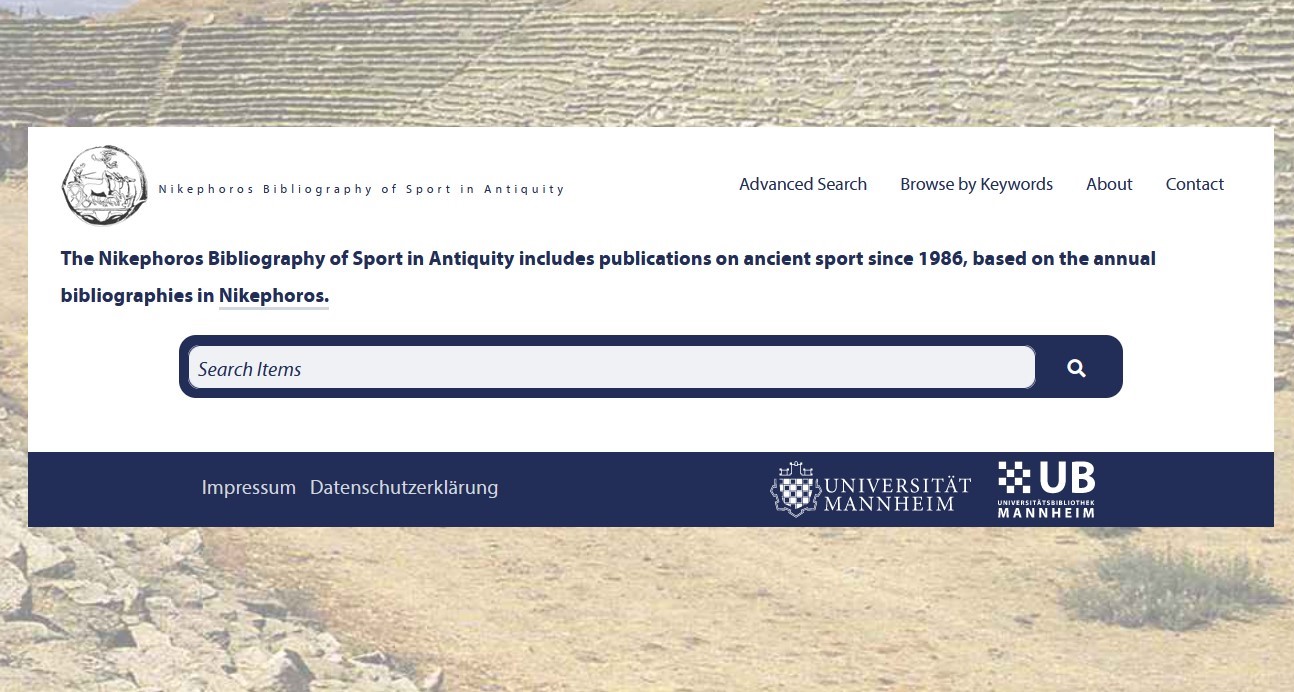
Omeka Classic theme for MAObjects
This theme is based on the MAObjects theme, which itself is based on the Center Row theme.
This is a heavy customizable Omeka Classic theme for MAObjects, built to present digital collections, objects, and virtual exhibitions in the University of Mannheim’s visual design.
It is used by the Mannheim University Library in the context of MAObjects Omeka deployments to provide a theme in the corporate design of the University of Mannheim. MAObjects is a service of the Mannheim University Library that provides researchers with an Omeka-based platform to create and present digital object collections and virtual exhibitions by uploading digital objects, describing them with standardised metadata, and making the data available via an API.

- Built for research collections and digital exhibitions:
- Designed for deployments that present digital objects, curated collections, and virtual exhibits in a polished University of Mannheim look (but not limited to!).
- Flexible branding and homepage setup:
- Configure logo, logo text, header image, a configurable CI-style footer with uploaded logos and editable link blocks, colors, breadcrumbs, background image, and a homepage with intro text plus featured item, collection, or exhibit blocks.
- Configurable navigation and search:
- Show or hide child pages in the top navigation, switch the quick search behavior, or expose Omeka's advanced site-wide search for more targeted discovery.
- Stronger item and collection presentation:
- Choose grid or list browse views, switch item-page layouts, control headings and duplicate title output, and decide how citations and secondary navigation are shown. Additionally, the item tags page includes a search bar to filter the tag cloud by search query.
- Better media handling out of the box:
- Support single- or multi-file items, choose media sizes and captions, surface non-image files more gracefully, and optionally use Lightgallery with PDF Embed integration for PDF viewing.
- Plugin-aware theme refinements:
- Includes dedicated support for Exhibit Builder content and additional theme styling for maintenance pages and other site states.
Current Changelog and release notes can be found in the CHANGELOG.md file.
Theme settings
This theme offers extensive customization options through the Omeka admin interface. The listings are grouped in the same way as in the Appearance → Configure Theme screen.
General
These options apply to various general aspects of the theme.
| Setting | Description |
|---|---|
| Hide 'breadcrumbs' | Hides the breadcrumb trail (the path to the current page) from the top of content pages. |
| Disable Image Hover Effect | Disables the zoom-on-hover effect for images throughout the theme. |
Color
Provide a hex code to set the color of different elements of the theme. (Read more about html color codes here. Omeka only uses hex codes, formatted #XXXXXX.)
| Setting | Description |
|---|---|
| Body background color | Hex color for the main page background. |
| Border color | Hex color used for borders and separators in the theme. |
| Link color | Hex color for links (normal state). |
[!NOTE] In the current state of the theme, some colors are not fully applied throughout all elements of the theme. Further improvements are planned for future versions.
Header
These options apply to the header of the theme, including the quick search bar in the header.
| Setting | Description |
|---|---|
| Logo File | Upload a logo image to replace the site title in the header (recommended max width ≈ 500 px). |
| Logo Text | Optional text shown together with the logo (e.g. subtitle or project name). |
| Logo Text Position | Controls whether the logo text is shown below or beside the logo. |
| Header Image | Image displayed below the header bar (e.g. banner image). |
| Header Image Height | Maximum height for the header image (CSS length value such as 300px, 15rem, etc.). |
| Header Image Height For Mobile Devices | Maximum height for the header image on smaller screens. |
| Header Image Position | Vertical alignment of the header image within its container (top, center or bottom). |
| Alt Text for Header Image | Alternative text for the header image to improve accessibility and screen-reader support. |
| Show Header Image On Homepage | Shows the header image on the homepage as well as on other pages. |
| Use Advanced Site-wide Search | Enables Omeka’s advanced search form so users can search across record types and choose boolean operators. |
| Replace quick search bar with link to items/search | Routes queries from the quick search bar to the /items/search page instead of using the basic search. |
| Do not provide quick search bar | Completely hides the quick search bar from the header. |
| Show Top Navigation Child Pages | Shows child pages as dropdowns under the top navigation items; when unchecked, only top-level pages are shown. |
[!NOTE] In the current state of the theme, some header options have no effect anymore and will be reviewed in future updates.
Footer
These options apply to the footer of the theme.
| Setting | Description |
|---|---|
| Footer Logo 1 / Footer Logo 2 | Optional uploaded logos shown in the left footer branding column. |
| Footer Logo 1 Label / Footer Logo 2 Label | Optional text shown above the corresponding footer logo (for example “Hosted by”). |
| Use footer gradient background | Enables a linear gradient for the footer shell; when disabled, the default is a solid Uni Mannheim blue background. |
| Footer Block 1-3 Title | Title shown above each of the three main footer link columns. |
| Footer Block 1-3 Links | html-input textareas for footer column links in the format "url":"title", one entry per line. <br>-based line breaks from the editor are supported. |
| Footer Legal Links | html-input textarea for the lower legal link row, using the same "url":"title" format. Internal paths like "/imprint" are resolved through Omeka, so they work in subdirectory installs as well. |
| Footer Text | Optional additional text/HTML shown beneath the main footer columns; hidden entirely when empty. |
| Footer Instagram URL / Footer Facebook URL / Footer LinkedIn URL / Footer TikTok URL / Footer YouTube URL / Footer Mastodon URL | Individual social-media URL fields for the footer icons. Leave a field empty to hide that icon. |
Homepage
These options apply to the homepage. Most of these options apply only if no other homepage is set in the Omeka settings ( Select a Homepage).
| Setting | Description |
|---|---|
| Display Featured Item | Shows a featured item block on the homepage. |
| Display Featured Collection | Shows a featured collection block on the homepage. |
| Display Featured Exhibit | Shows a featured exhibit block (requires the Exhibit Builder plugin). |
| Homepage Text | Introductory text/HTML displayed on the homepage. |
| Autoplay Homepage Slides | Automatically cycles through slides in the homepage carousel. |
| Slide Autoplay Speed | Time in milliseconds between slide transitions when autoplay is enabled (e.g. 5000 = 5 seconds). |
| Floating Homepage | Uses a “floating” layout where the main homepage content card appears detached from the page background. |
Items: Browse
These options apply to the items browse page (Browse All, Browse by Tag, Browse by Collection, etc.). This is the overview of all items.
| Setting | Description |
|---|---|
| Browse Item Page Style | Choose between Grid (thumbnail-focused) and List (metadata-focused) layout for item browse pages. |
| Item Browse Sort Control | Choose between a Dropdown sort selector and the Classic links list on item browse pages. |
| Hide Secondary Navigation | Hides the secondary navigation on browse pages (Browse All, Browse Collections, Browse by Tag, etc.). |
| Show list of output formats | Shows links to available output formats on item browse and item show pages. |
Items: Page
These options apply to the item (show) page. This is the item detail view of one specific item.
| Setting | Description |
|---|---|
| Layout | Selects the item page layout: vertical (media above/below metadata) or horizontal (media and metadata side by side, with media on left or right). |
| Content Ratio | For horizontal layouts, percentage width of the primary (media) column; the metadata column uses the remaining width. |
| Show only primary media | Shows only the primary media file on the item page and hides all other attached files. |
| Link media to URL | Links media files to the URL set in the item metadata (only applies if "Show only primary media" is enabled and "Use lightgallery" is disabled). |
| Media Image Size | Selects the image size to use for media thumbnails on item pages. |
| Media Image Max Height | Sets a maximum height for media thumbnails on item pages. |
| Non-Image Media | When enabled, non-image files that cannot be shown in the media viewer are listed as downloadable links instead of being hidden. |
| Use lightgallery | Uses the lightgallery viewer to display media; when combined with the PDF Embed plugin, PDFs can be shown in the gallery as well. |
| Hide toolbar from PDF viewer | Hides the PDF viewer toolbar when using PDF Embed with PDF.js (if supported by the browser). |
| Media Caption | Defines which metadata appears as the caption in lightgallery slides: item Title, Description, or None. |
| Hide heading | Hides the main heading on the item page. (To hide all element set headings globally, use the Omeka Settings screen.) |
| Hide Dublin Core Title entry | Hides the “Dublin Core: Title” element in the metadata list (useful to avoid duplicating the page heading). |
| Show citation | Displays a citation box on the item page. |
Collection: Browse
These options apply to the collection browse pages (overview of all collections). This is the overview of all collections.
| Setting | Description |
|---|---|
| Browse Collection Page Style | Choose between Grid and List layout for the collection browse page. |
| Collection Browse Sort Control | Choose between a Dropdown sort selector and the Classic links list on collection browse pages. |
Collection: Page
These options apply to the collection show pages (overview of one collections, showing some items). This is the collection detail view of one specific collection.
| Setting | Description |
|---|---|
| Show Collection Items as list | Information-only reminder that setting Browse Item Page Style to List will also show collection items in a list on collection pages. |
| Hide heading | Hides the main heading on the collection page. |
| Hide Dublin Core Title entry | Hides the “Dublin Core: Title” element in the collection metadata to avoid repeating the heading. |
Background Image
These options allow to set a background image which is shown in the background of the theme.
| Setting | Description |
|---|---|
| Body Background Image | Uploads an image that is used as the global page background. |
| Body Background Image Position | Chooses how the background image is anchored when the viewport is resized (center, top, bottom, left, right). |
| Body Background Image Repeat | Controls tiling of the background image (no repeat, repeat, horizontal repeat, vertical repeat). |
| Body Background Image Size | Controls how the background image is scaled (automatic, cover the viewport, or contain within it). |
| Do not show background image under content | When enabled, the background image is not shown beneath the main content area, keeping the content background solid. |
Exhibits
These options apply to the exhibit pages. This includes the exhibit overview page and the individual exhibit pages created with the Exhibit Builder plugin" | Setting | Description | |-----------------|---------------------| | Hide exhibit heading | Hides the main heading on exhibit pages. | | Hide exhibit navigation | Hides the exhibit navigation on exhibit pages. |
Installation
- Download the theme archive from the Omeka themes collection, the projects release page or clone this repository into your Omeka installation's
themesdirectory. - In the Omeka admin dashboard, navigate to "Appearance" and activate the "MAObjects" theme by clicking on the "Use this theme"-button.
- Customize the theme settings as needed.
Contributing
Contributions are welcome! Please fork the repository and submit a pull request with your changes. For major changes, please open an issue first to discuss what you would like to change.
Copyright & Licence
MAObjects is Copyright © 2024-present Mannheim University Library, Mannheim, Germany https://www.bib.uni-mannheim.de.
Center Row is Copyright © 2018-present Corporation for Digital Scholarship, Vienna, Virginia, USA http://digitalscholar.org.
The Corporation for Digital Scholarship distributes the Omeka source code under the GNU General Public License, version 3 (GPLv3). See the LICENSE file for the full text.
The Omeka name is a registered trademark of the Corporation for Digital Scholarship.
Third-party copyright in this distribution is noted where applicable.
All rights not expressly granted are reserved.